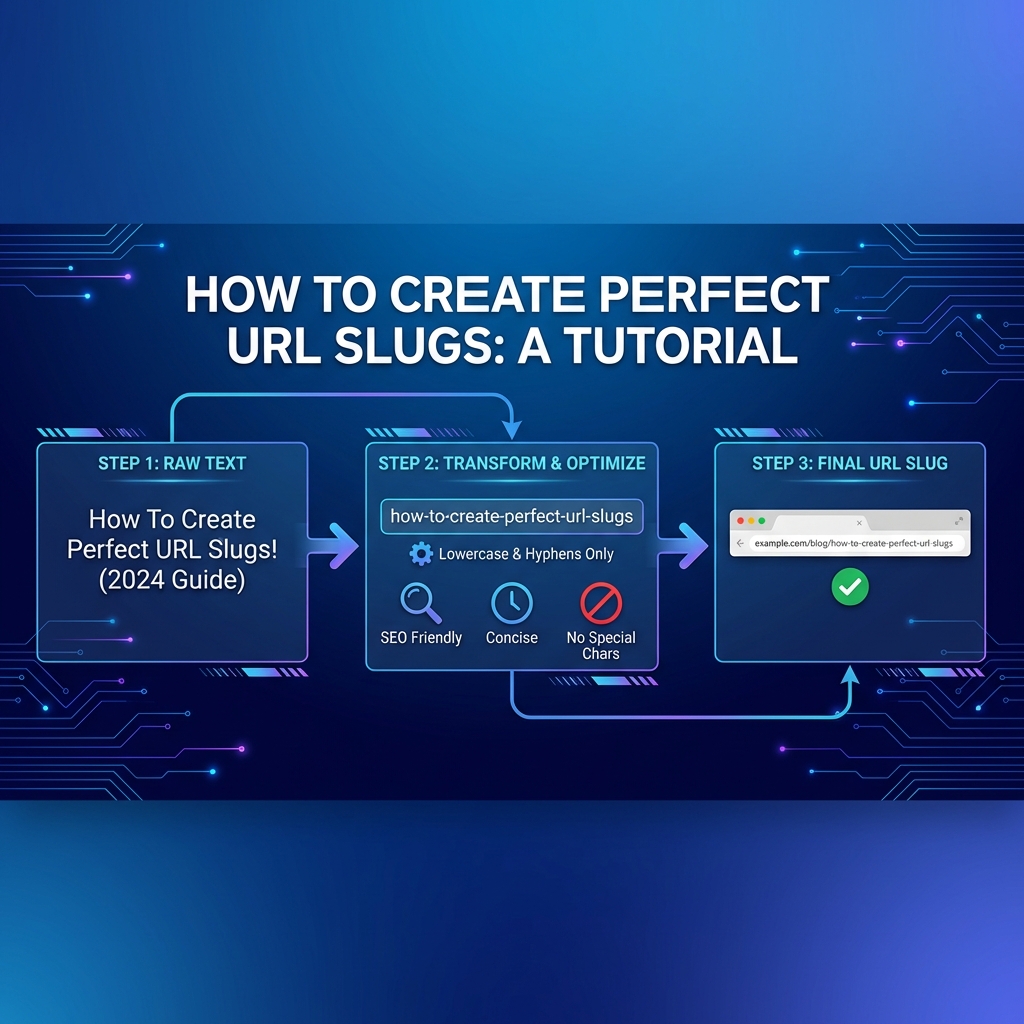
Learning to use our Slug Generator effectively takes just minutes, but mastering it can save you hours of work and significantly improve your website's SEO performance. This comprehensive tutorial walks you through everything from basic usage to advanced techniques that professionals rely on daily.
Getting Started: Your First Slug
Let's start with the absolute basics. Open your web browser and navigate to our tool page. You'll immediately see a clean, straightforward interface designed to get out of your way and let you work efficiently. No registration forms, no popups asking for your email, no confusing options to configure. Just a simple input field ready for your text.
For your first test, try something simple. Copy this exact text: "How to Bake Chocolate Chip Cookies." Paste it into the input field. You'll notice the character and word counters update instantly, showing you exactly how much text you've entered. This real-time feedback helps you gauge whether your input is appropriately sized for a URL slug.
Now click the "Generate Slug" button. Watch what happens. In a fraction of a second, the output area displays your perfectly formatted slug: "how-to-bake-chocolate-chip-cookies." Every word is lowercase, spaces have become hyphens, and the result is clean and professional. That's the basic workflow, and it works the same way whether you're processing a simple phrase or complex text with special characters. If you're new to slug generation, check out our introduction article to understand the fundamentals.
Understanding the Interface Elements
Before we dive into advanced techniques, let's understand each part of the interface and how to use it effectively. The input textarea is where everything begins. You can type directly into it, or paste text from anywhere - your word processor, notes app, spreadsheet, or content management system. The field accepts unlimited text length, though remember that shorter inputs generally produce better slugs.
Below the input area, you'll find real-time statistics. Character count shows the total number of characters in your input, including spaces and special characters. Word count displays how many words you've entered. These metrics help you understand if you're starting with an appropriately sized input. If you see 200 words in the counter, that's probably too long for an effective slug.
The action buttons give you several options beyond just generating slugs. The "Try Sample" button loads example text automatically, perfect when you want to see how the tool handles various scenarios without typing your own content. Use this feature to explore edge cases or demonstrate the tool to colleagues.
The "Clear" button resets everything to its default state. Input field empty, output area cleared, ready for your next task. This becomes particularly useful when you're processing multiple slugs in sequence and want a clean slate between each one.
Once you've generated a slug, the output area reveals additional options. The "Copy" button transfers the slug to your clipboard with a single click. Modern browsers handle this seamlessly without requiring any special permissions. After clicking copy, you'll see visual confirmation, and the slug is ready to paste wherever you need it.
The "Download" button saves your slug as a text file. While this might seem unnecessary for a single short slug, it becomes valuable when you're managing multiple projects or need to maintain records of URL changes during a site migration. The downloaded file uses a timestamped filename, making it easy to organize your saved slugs.
Finally, the "Share" button leverages your device's native sharing capabilities. On mobile devices especially, this provides quick access to email, messaging apps, and other sharing methods without manual copying and pasting.
Common Usage Scenarios
Different situations call for slightly different approaches. Let's walk through the most common scenarios you'll encounter and how to handle each one perfectly.
Scenario 1: Blog Post Permalinks
You've just finished writing a blog post titled "10 Essential Tips for Growing Tomatoes in Small Spaces." Your content management system auto-generated a slug, but it's ugly and non-optimized. Here's how to create a better one.
Paste your full title into the slug generator. The result, "10-essential-tips-for-growing-tomatoes-in-small-spaces," is already pretty good. But can we make it better? The number "10" doesn't add much SEO value, and "essential" is somewhat generic. Try editing your input to just "tips-for-growing-tomatoes-in-small-spaces" or even simpler, "growing-tomatoes-small-spaces."
The choice depends on your SEO strategy. If you're targeting the specific search phrase "tips for growing tomatoes," keep "tips" in there. If you want a more general slug that could rank for multiple related searches, the simpler version works better. Generate both versions, compare them, and choose based on your goals.
Scenario 2: E-commerce Product URLs
Product names often contain information that's essential for customers but problematic for URLs. Consider a product officially named "Mens AirFlow Pro™ Running Shoes - Size 10.5 (Blue/Grey)." That trademark symbol, the period in the size, and the parentheses all cause problems in URLs.
Paste the product name into the generator. You'll get "mens-airflow-pro-running-shoes-size-10-5-blue-grey." Perfect! All the important information remains - the brand name, product type, size, and color - but problematic characters have been handled appropriately. The period in "10.5" became a hyphen, the trademark symbol disappeared, and the parentheses vanished. What you're left with is a clean, professional product URL.
Scenario 3: Multi-Language Content
International websites face unique challenges. Suppose you're creating a page titled "Café René - Les Meilleurs Croissants à Paris." Those accented characters are gorgeous in French but can cause compatibility issues in URLs.
Run it through the slug generator and watch the magic happen: "cafe-rene-les-meilleurs-croissants-a-paris." Every accented character has been converted to its plain equivalent. The é becomes e, the à becomes a. Your French speakers can still recognize the words, but you've eliminated potential technical issues with older browsers or server configurations that don't handle Unicode perfectly.
Advanced Techniques for Power Users
Once you've mastered the basics, these advanced techniques will help you work faster and produce even better results.
Keyboard Shortcuts
Pressing Ctrl+Enter (or Cmd+Enter on Mac) while focused in the input field immediately generates your slug without clicking the button. This seems like a small optimization, but when you're processing dozens of slugs, eliminating that mouse movement adds up. Professional workflow optimization often comes down to these tiny efficiency gains.
Pre-Editing Your Input
While the generator handles any text you throw at it, pre-editing can produce better results. Remove obvious stop words before generating if you know you want them gone. Cut out parenthetical information that doesn't need to appear in the URL. Simplify complex phrases into their core meaning.
For example, instead of pasting "A Comprehensive Guide to Understanding Modern JavaScript Frameworks (2026 Edition)," first edit it to "guide modern javascript frameworks 2026." The generator will produce "guide-modern-javascript-frameworks-2026," which is shorter and more focused than what you'd get from the original verbose title.
Batch Processing Strategy
Need to generate slugs for multiple pages at once? Open a spreadsheet or text document alongside the slug generator. Paste your first title, generate the slug, copy it to your spreadsheet, click clear, and move to the next one. With practice, you can process dozens of slugs in just a few minutes.
Some users keep a running document of all their generated slugs paired with the original titles. This creates a valuable reference when you need to remember what slug you used for a particular page or when planning your site's URL structure.
Testing Edge Cases
Before relying on the tool for critical production work, test it with challenging inputs. Try pasting text that's entirely numbers. Enter a string of special characters. Use extremely long titles with 50 or more words. Copy text with unusual Unicode characters from various languages.
Understanding how the tool handles these edge cases builds confidence and helps you predict results accurately. You'll learn when you might need to manually adjust the output and when you can trust it completely.
Platform-Specific Implementation
Generating the slug is only half the battle. You need to actually implement it on your website. Here's exactly how to do that across the most popular platforms.
WordPress Implementation
WordPress makes custom permalinks straightforward. When you're creating or editing a post or page, look just below the title field. You'll see your current permalink displayed with an "Edit" button next to it. Click that button to open the permalink editor.
The editable portion appears highlighted. Delete the existing slug completely, then paste your generated slug from our tool. Click "OK" or just press Enter to confirm. WordPress immediately updates the permalink. Don't forget to save your draft or publish the post to make the change permanent.
Important tip: if you don't see the edit option, check your permalink settings. Navigate to Settings → Permalinks in your WordPress admin. Ensure you're using the "Post name" structure or a custom structure that includes %postname%. The "Plain" structure doesn't support custom slugs.
Shopify Products
In Shopify's product editor, scroll down past the description and images to find the "Search engine listing preview" section. Click "Edit website SEO" to expand it. You'll see several fields including "URL and handle."
Paste your generated slug into the "URL and handle" field. Shopify automatically shows you what the final URL will look like, including your store domain and any collection prefixes. This preview helps you verify everything looks correct before saving.
One Shopify-specific consideration: if you're changing the URL of an existing product, Shopify automatically creates a URL redirect from the old address to the new one. This preserves any existing links and prevents broken URLs for customers who bookmarked the old address.
Custom CMS or Static Sites
For custom implementations, where you use the slug depends on your setup. In static site generators like Jekyll or Hugo, the slug typically becomes the markdown filename: "growing-tomatoes-small-spaces.md" rather than "post-1.md."
In custom routing systems, you'll add the slug to your route definitions. A React Router setup might use it like this: path="/blog/growing-tomatoes-small-spaces" component=BlogPost. The clean slug becomes part of your application's navigation structure.
Quality Control and Validation
Even with a reliable tool, implementing quality control measures ensures consistent, high-quality URLs across your entire site.
Manual Review Checklist
Before finalizing any slug, ask yourself these questions: Does it accurately describe the page content? Could someone understand what they'll find just from reading the URL? Is it as concise as possible while still being descriptive? Have I included my target keyword naturally?
If you answer no to any of these questions, edit your input and regenerate. The first result is usually good, but taking thirty seconds to review and potentially refine can make the difference between a good slug and a great one.
Length Considerations
While there's no absolute character limit for URL slugs, best practices suggest keeping them under 60 characters when possible. This isn't a hard rule, but shorter slugs are easier to remember, share verbally, and display fully in search results without truncation.
If your generated slug exceeds 60 characters, see what you can trim. Often you'll find it's easy to cut unnecessary words without losing meaning. "comprehensive-guide-to-understanding-advanced-seo-techniques" could become "advanced-seo-techniques-guide" without any real loss of clarity.
Common Mistakes to Avoid
Even experienced users occasionally make mistakes that reduce the effectiveness of their URL slugs. Here are the most common issues and how to avoid them.
Mistake one: including dates when they're not necessary. If you're writing evergreen content that'll be relevant for years, don't include "2026" in the slug. When someone discovers your article in 2028, the dated URL makes it seem outdated even if the content remains current.
Mistake two: keyword stuffing. A slug like "best-coffee-maker-best-coffee-best-espresso-machine-coffee" looks spammy and actually hurts SEO rather than helping it. Include your primary keyword once, naturally, and stop there.
Mistake three: changing slugs frequently. URL consistency matters for SEO. Once you've published content with a particular slug and it's been indexed by search engines, changing it requires setting up redirects and can temporarily impact rankings. Get it right the first time.
Mistake four: forgetting to actually implement the slug. It sounds obvious, but in the rush of publishing content, it's easy to generate a perfect slug and then forget to paste it into your CMS, leaving the auto-generated version in place. Always verify your URLs before clicking publish.
Troubleshooting Common Issues
Occasionally you might encounter unexpected results or face challenges implementing your slugs. Here's how to diagnose and fix common problems.
If the copy button doesn't seem to work, try manually selecting the text in the output area and using Ctrl+C to copy it. Some browser or security configurations occasionally interfere with automated clipboard access. The manual method always works.
If your slug appears too short or consists only of numbers, examine your input. You might have pasted text consisting entirely of special characters that got stripped out. Add at least a few regular letters to ensure a meaningful slug results.
If your CMS rejects a generated slug, check for platform-specific restrictions. Some systems have maximum length limits shorter than general web standards. Others ban certain words as reserved terms. Generate a slightly different variation and try again.
Putting It All Together
You now have complete knowledge of how to use our Slug Generator effectively. From basic single-slug generation to advanced batch processing, from WordPress implementation to custom systems, you're equipped to create perfect URLs for any situation.
Remember that tools are only as good as the people using them. The generator handles all the technical details flawlessly, but your judgment about what makes a good slug - your understanding of your audience, your SEO goals, and your site architecture - determines the final quality.
Start simple, practice regularly, and gradually incorporate the advanced techniques we've covered. Before long, creating optimal URL slugs will become second nature, and you'll wonder how you ever managed without this tool.